Showing posts with label Play Store. Show all posts

Monday, 5 June 2017

6 Best Game Hacking Apps for Android (with/without Root)

6 Best Game Hacking Apps for Android (with/without Root)

Playing video games on your android smartphone is a great pass time activity for many youths across the globe. However, most video games now have annoying features that suck the fun out of the endeavor and makes playing them a tasking activity. For example, many free games come with annoying advertisement and limited features which are geared towards making you purchase their premium versions. However, this can destroy the desire to play the games.
To solve such problems many avid gamers are turning to game hacker apps to help remove annoying features from video games so that they can enjoy playing. To do this effectively you need to use the best cheat apps for android devices. The best android cheat apps are:

Part 1: SB Game Hacker APK

The SB Game Hacker Apk is an android game modifying that is easy to install and use than most other available tools.  The SB Game Hacker apk game hacker app android works by helping you get more coins and lives so as to maximize the playing a given game.  Furthermore, the app helps remove those annoying ads and bypass license restrictions so that you can fully enjoy playing a given game.  This app works best on rooted devices and therefore it is important that you root the device first before installing the game.
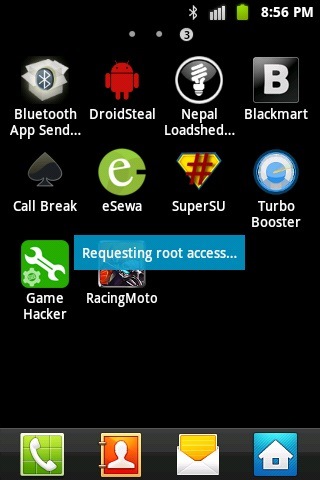
sb game hacker

Key Features

  • Offers both accurate and Fuzzy searches
  • It enables data filtering
  • Supports more than one language (English and Chinese)

User Reviews

The SB Game Hacker Apk is a popular app for hacking video games and has a lot of reviews online. The majority of the users say that they love the app because it gives them a lot of freedom when playing various computer games. However, some have issues with the app because it cannot hack non-rooted android devices properly.

Part 2: Creehack

Creehack is the perfect game hacker app android tool that you need if you want to enjoy playing lots of video games on your android device for free. Usually, many video games require that you make purchases if you want to enjoy all the features of the game. With Creehack, you can bypass all the limitations and then enjoy your favorite game without having to make the purchase.  In addition, you can get playing items such as lives, levels and coins for free.
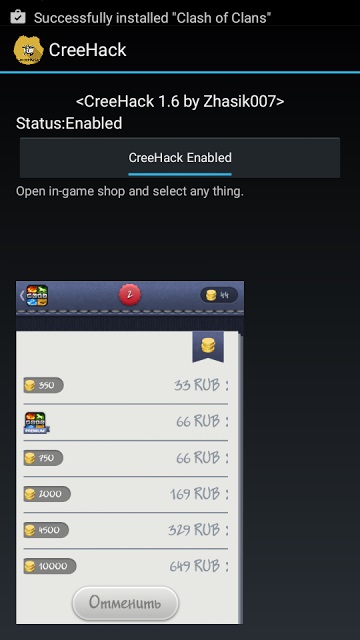
creehack

Key Features

  • Can bypass all App payment requirements
  • Allows for unlimited In-App purchases
  • Does not require rooting
  • Is compatible will almost all apps

User Reviews

Most of the Creehack game hacker android  users agrees that it is one of the best things that they have encountered. It allows them to play a lot of different games successful without having to make costly purchases. In addition, the app is easy to install and use and thus quite useful even to the video game lovers who are not tech savvy.

Part 3: LeoPlay Card

The LeoPlay Card is another great game hacker android tool that will allow you to play lots of android video games for free. The app just like CreeHack comes with an inbuilt card that you can use for free on Google play.  It is also better than most other apps because it does not require rooting.
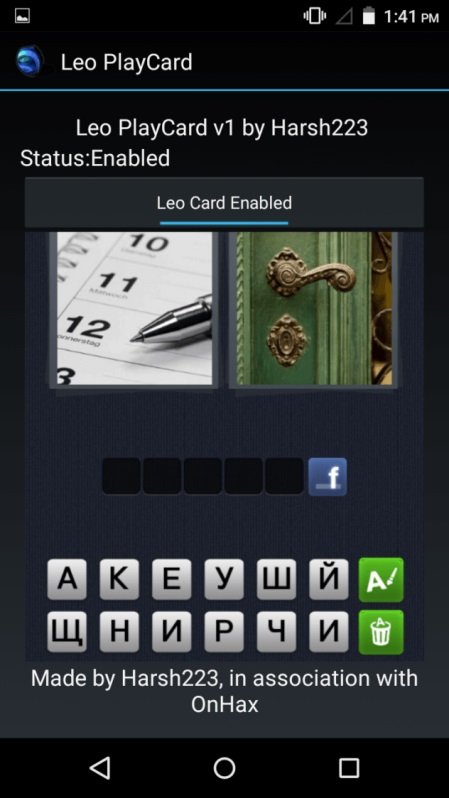
leoplay card

Key Features

  • Does not require rooting
  • Allows you to make unlimited in-app purchases
  • Is compatible with almost any app
  • Allows for addition of new units

User Reviews

The majority of the reviewers agree that the LeoPlay Card android game hack is the best tool they have that allows them to access many different games for free. The tool has many features and allows player limitless access to numerous video games. However, a number of users have had issues playing their favorite games given the fact that the app does not work with all online games.

Part 4: Game Killer

Game Killer APK is one of the best android game hacker apps that allow you to modify or hack gems, coins, and other game features as you play your video games.  The app uses the memory modifying technique and thus is compatible with a wide range of android versions of video games. The app is great for hacking all manner of games but modifying paid games is often discouraged. The Game Killer android game hack must have root access to your device for it to function effectively.
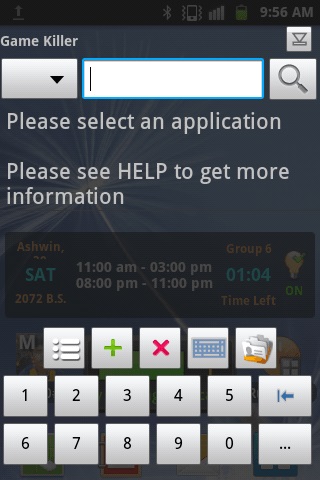
game killer

Key Features

  • Root access required
  • Use memory modification technique
  • Can lock video games to required level
  • Can search for games with unclear directions

User Reviews

Gamekiller game hacker android has over 10 million users worldwide. The app has received mixed reviews with the majority of the reviewers loving it. However, a few people feel that since it cannot hack online games, it is of limited use.

Part 5: Gamecih

GameCIH is an amazing free cheat software that will help you modify video games and gain an edge considerably. The app allows you to modify many variables in a wide range of online games without having to master the game codes.  For example, you may use the app to gain more coins, change the attributes of characters in the game, or change your score and a lot of the other game statistics.  
gamecih

Key Features

  • Requires android rooting
  • Work best with offline games

User Reviews

Thousands of people have downloaded this app and love using it to hack video games. Many have reported that it works perfectly with their online games however, there are quite a number of reviewers who believe that the GameCIH is not as good as the Game Killer or the  SBMan Game Hacker.

Part 6: Xmodgames

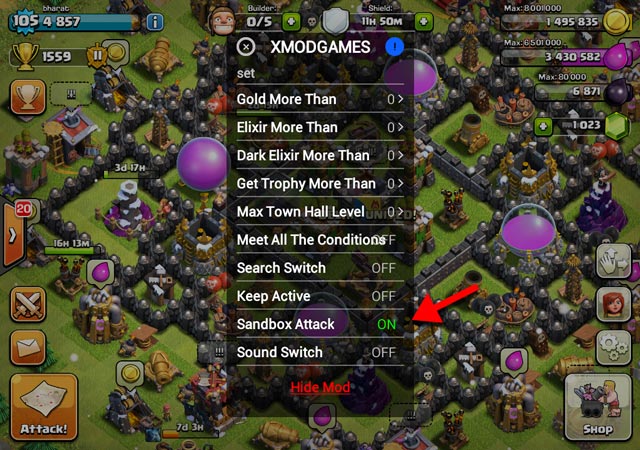
The XMOD Games game hacker android is an amazing tool for playing video games on rooted android smartphones.  The devices work by scanning your devices for all games stored on it and then comps the internet for any trick or assistance that you can use to hack the games.  The app is cool for playing all manner of video games as it provides great tricks to inject fun into the game and make it a lot easier to play.
xmodgame

Key Features

  • Automatic search for opponents and other game features
  • Provides you with a super game mode to ensure that you gain an edge over your opponents
  • Have thousands of game modes for different games
  • Regular updates for the hot games


Source:wondershare.com

Thursday, 12 May 2016

How To Make Money From Android Apps

How To Make Money From Android Apps

Android Market is one of the best and famous platform of sharing and downloading Applications. As i ready discuss many things about android and its working in my previous articles but the main reason behind why apps developers choose android market is because they can earn revenue from their apps. Its seem like good and interesting about making money from your android apps. In past  few years their are millions of developers who are earning from android. But the main question how you can also earn money? So i hope at the end of this article you will


definitely thing about turning your online business towards android market also.
So here i am going to start discussing about the simple ways to make money from your android apps. Mostly their are two different and effective method to make money from android.


  •     By using Ads on Your Apps
  •     Selling Android Apps as Paid
So before proceeding with this article the important part is you already having any android app. But if you don't have any android app then i suggest you to must read my little afford about how you can make your own android apps
 By Using Adsense on Your Apps
This is one of the best and effective way to earn revenue from your Apps. You can earn revenue from your android apps bu Using Google Adsense. Their is mobile version of Adsense which is known as Admob. Here are the steps about how you can make money by using Admob.

Note:- Before Using Admob Make sure that you have to publish your Android apps in Google play store.

  • Firstly Open the Google Admob
     
  • Now register your account with correct detail by using your gmail account. If you already having an Adsense Approve account then use it for Admob to sign up.
     
  • After completing Sign up, click on the Add your app button.
     
  • Now Provide the Tax detail and payment method before proceeding in Admob. Their are two different methods available for payment by Using Bank account or by using PayPal method.
  • Now Add your Apps type their are 4 available option Android apps, ipad Apps, iphone Apps and windows phone 7 apps.
  • Google admob
     
  • Click on the Android apps tab if your apps is publish in android market.
     
  • Now enter the required detail of your Apps like enter the name of app, Provide the url of your apps published in play store, then choose the category and enter the apps description. 
  • Now Submit your apps detail and wait for apps Approval. After the approval you will get unique id code which you have to save or paste in the hosting of apps where your apps is created.
  • Now copy Your Publisher id code and paste them in Advertisement section available in the hosting of your apps.
  • After setting all the steps successfully within 24 hours ads will start appearing on your Android apps and you can check earning in the Admob dashboard.
Selling Paid Android Apps

This is second and best method to earn money from your android apps. As we know their are many apps which comes under the category of paid apps. Mostly those apps which have some amazing features and developer feel that they have to charge some money from theirs users for their Job and services like one of the most famousWhatsapp which is also make service charges. So here i suggest you if you are able to make your own android apps which contact some features which you feel that people wants to use then you can also charge some money your apps or games.  If you have an good knowledge about apps developing then i don't think you face more problems.

At the end i only say making money from android is not an easy task but if you have apps developing skills or having knowledge about apps developing then i am defiantly sure that will earn money if you have long term planning with Patience  also.

How to hide IP address in Android devices

How to hide IP address in Android devices

You need to disguise your IP address of your Android smartphone to access a site that blocked access from India or for privacy reasons?  Perfect, you're in the right place at the right time.

With the guidance of today, we will discover how to hide IP address in Android devices, thanks to some solutions that allow you to navigate from smartphones and tablet using a foreign address (U.S. or UK). They are all very easy to use and free, at least in their basic version. Let's get right to work! 


If you're looking for a solution on  how to hide IP address in Android devices,the first Android app that I suggest you try is HotSpot Shield. This is a VPN (virtual private network) that lets you disguise the IP of your smartphone/tablet with a u.s. address and thus provides access to blocked websites (in previous posts we have discussed about blocking websites as well, you can check it here(link)). The basic version is free but is displaying some banners and a speed of navigation rather low.

To install HotSpot Shield on your Android Terminal, open the Google Play Store, look for the app within the latter and tap on install button, and then click I accept. When the operation is complete, start HotSpot Shield and create a free account to use the service.

To do this, press the button Yes, protect my connection!, then tap Continue and fill in the form proposed to you by typing your email address and password you want to use to access HotSpot Shield in their respective fields. Finally, press the Create account button and you're done.

At this point, to hide IP address in Android  devices using HotSpot Shield, tap on the button Protect my connection! located on the main screen of the app and wait until the connection is established to the VPN.

When the connection is made, HotSpot Shield icon in the Android status bar will turn green and you can surf the Internet using your IP in disguise. To verify the change of address, open the browser, connected to any of the sites that allow you to display your IP (e.g. whatismyipaddress.com) and you should be connected from the USA.

At the end of your session work (or leisure) online, you can stop the HotSpot Shield connection going into the main app screen and pressing the button Turn off protection.Is it not easy?

If you don't want that HotSpot Shield starts automatically when you start Android, tap on the Menu button located in the upper right corner (the icon with three horizontal lines), select Settings from the box that pops up and remove the checkmark from the option Start  on boot. If you want to subscribe to a paid service plan (without advertising and faster Web surfing), tap on the text Get More and choose which subscription.

Other good VPN applications you could try on your smartphone or tablet Android are TunnelBear, which offers 500 MB of free traffic per month giving you the ability to disguise your IP with a us or UK address, and Tigervpns VPN offering 500 MB of free traffic for all new subscribers.


DOWNLOAD | Hotspot Shield VPN

DOWNLOAD | TunnelBear

DOWNLOAD | Tigervpns

Thursday, 11 February 2016

How to Enable Guest Mode on Android

 How to Enable Guest Mode on Android

Enable-Guest-Mode-on-Android


Ever needed to hand your Android smartphone to someone else for a while? If yes, then there's a good chance that you were worried about how easily they could go through your personal data or end up changing preferences or even deleting information like contacts or messages.
Fortunately, Android 5.0 Lollipop ships with a system-level guest mode. This lets you quickly switch to a separate guest profile that doesn't have any of your personal data such as messages, installed apps or preferences. This is as good as a fresh install of Android 5.0 Lollipop and the moment you switch back to your Google account, all data saved in the guest mode is removed. This makes it a particularly effective way of letting someone else use your phone for a while.
Here's how to enable guest mode on Android 5.0 Lollipop.
  1. Swipe down from the top of the screen to pull down the notifications bar.
  2. Tap your avatar on the top right twice.
  3. Now you'll see three icons - your Google account, Add guest and Add user.
  4. Tap Add guest.
  5. Now your smartphone will switch to guest mode. This may take some time and the phone may be slightly slow initially, but in our tests with a Nexus 5 it worked well after a few minutes.
  6. When you're done with guest mode, you can easily revert to your Google account. Follow steps 1 and 2 above and tap the icon that shows your Google account. This will delete all data saved in the guest session as well.
If your smartphone doesn't have Android 5.0 Lollipop installed, you should check for a pre-loaded guest mode. Some brands such as Xiaomi, LG, Samsung and Huawei pre-load an app that enables you to use guest mode on your smartphone. Different brands name this app differently, so look in your phone's app drawer for apps with names similar to Kids' Mode or Guest Mode. Some Android phones have guest mode embedded at the system level. For example the LG G3 has a guest mode that you can access by going to Settings > General > Privacy > Guest Mode.
If your phone doesn't have this feature, the most effective way to keep your personal data safe is by locking down certain apps. We've written a detailed guide on how to stop others from accessing your Android apps so be sure to check that. If you just want to keep Google Chrome away from prying eyes, you can read our guide to enabling guest mode in Google Chrome.

How to Enable Guest Mode in Google Chrome

How to Enable Guest Mode in Google Chrome

Google Chrome is one of our favourite browsers on iOSAndroid and Windows. We like it because it works well and allows you to easily import your preferences and other browser data across platforms. While there's no doubt about how useful this feature is, it can become a problem if you're not the only one using your computer.
How to Enable Guest Mode in Google Chrome
If someone else takes your phone or computer and starts using Google Chrome, that person will have access to all your saved passwords. Another problem is that if you, like us, have spent some time setting up Google Chrome to suit your needs, then you might not want anyone else to change things. If you're signed in to Google Chrome via the same account on two devices, you remove an extension on one computer and it disappears on the other too. So it's not too hard to imagine a situation where someone deletes a whole bunch of important bookmarks and extensions, leaving you to set up the browser again.
In order to avoid this, you can enable guest mode in Google Chrome before handing your machine over to someone. This lets others use Google Chrome without messing around with your browser preferences. Here's how to enable it.

Windows and Mac
The steps to enable guest mode in Google Chrome are the same for Windows and Mac users.
  1. Open Google Chrome.
  2. On the top-right, you will see the name of the person whose Google account the browser is linked to. Click the name.
  3. Click Switch person.
  4. Click Browse as Guest.
  5. This will open a new window where you won't be able to access any of your browser data. Guest mode is like incognito mode, which doesn't save browser history or cookies. The only difference is that you can't even access bookmarks or other preferences.
Unfortunately, the solution isn't as straightforward on Android or iOS. The method described below is a bit cumbersome but it's the best possible way to do this as of now.
iOS
Follow these steps on Google Chrome for iPhone and iPad.
  1. Open Google Chrome.
  2. Tap the three vertical dots on the top-right.
  3. Tap Settings.
  4. Your Google account name and email address will be right at the top. Tap it.
  5. Tap Manage Accounts.
  6. Tap Use Chrome without a Google account.
  7. This will stop synchronising Chrome data on your iOS device with your Google account. Now on your iOS device, you can clear bookmarks or any other browser data you don't want others to change.
  8. When the other person has returns your iOS device, you can quickly get back all your data by signing in to your Google account again. Just follow steps 1-5 and then select your Google account or tap Add another account and sign in.
Android
  1. Open Google Chrome.
  2. Tap the three vertical dots on the top-right.
  3. Tap Settings.
  4. Tap your Google account name and email address that appear right at the top.
  5. Tap the blue button at the top to turn sync Off.
  6. This will stop syncing your data with your Google account. Now you can clear any preferences on Google Chrome for Android without disturbing the carefully configured settings on other devices.
  7. When you don't need guest mode anymore, you can quickly enable sync by following steps 1-4 and then tapping the button at the top to turn sync On.

How to Stop Others From Accessing Your Android Apps

How to Stop Others From Accessing Your Android Apps 


You hand over your phone to someone to make a call, or look up something on the Internet and the next thing you know, they're browsing through your messages. Most people know better than to be so rude, but we all know that one person who really doesn't understand why this is bad manners.
It's not like everyone has something to hide, but these days we all carry a virtual record of our lives in our pockets. Our smartphones have a lot of personal information we do not want other people to see.
One way to protect your privacy is to set a password lock on your phone. While that serves the purpose in most cases, it's no use when you pass your phone to someone for a quick call or if they want to check something. It's for times like these that a password lock for individual apps can come in handy. There are lots of apps for Android that let you do this, but Smart AppLock is our favourite.
This is how you can set up Smart AppLock to protect your apps from the curious friend:
  1. Download App Lock.
  2. When you first fire up the app, it'll ask you to set the password. The default password is 5555, as you'll see in the password hint on screen. Tap those numbers in to open the app.
  3. Now the App Lock tab will show up.
  4. Tap the green + button at the bottom.
  5. Select apps you want to lock down with a password. All you need to do is tap the checkmark next to each app that you want to protect.
  6. Tap ADD.
  7. Next to each app, you'll see a button labelled FAKE. Tap this button to enable a fake app crash message. Whenever you open that app, you will see a message like, "Unfortunately, WhatsApp has stopped." This will show the name of whichever app you have enabled the setting for. If someone sees the message and taps OK, Smart AppLock returns to the home screen. But if you tap and hold OK, you'll be asked to enter the app password.
That's it. Now all the apps you selected are hidden behind a password. But it's a good idea to change the default password and here's how you can do that:
  1. Swipe left to the Settings tab.
  2. Tap Password & Pattern Settings.
  3. Tap Password and key a new numeric code.
  4. Tap Password hint to replace the hint set by default.
  5. You can also switch to a pattern lock, gesture lock or character password lock. TapLock Type to switch.
This will set a common password for all the apps you picked. If you want a different password for any of your apps, try these steps.
  1. Open Smart AppLock and swipe left to the Settings tab.
  2. Tap Multiple Passwords.
  3. Tap Add Password.
  4. Here you can select individual apps by tapping Locked Apps.
  5. Tap the checkmark next to the apps you want to lock and tap Add.
We really liked Smart AppLock because it doesn't just protect your apps. It does this in a way that prevents any unauthorised user from knowing that something is up. This way, you can keep your stuff private, without getting into a fight with someone over it. Do you create password locks for individual apps? Let us know how via the comments. 

How To Increase Font Size On Android

How To Increase Font Size On Android 


There are many times when we sometimes feel a bit difficulty while reading the text on our Android smartphones and especially for those who have weak eye sight. Reading the text on your phone can be a pain in the bottom especially when you’ve got weak eye sight.


Are you also having difficulty while reading text on your Android phone? Well, in case if you guys said yes then don’t worry anymore because today I am gonna show you guys that how you can increase the text size on your Android smartphones.

So, here I will show you fellas that how you can increase the text size on your Android phones. So, without wasting a whole lot of your time, let’s dive in to it.
  • First, you would need to grab your Android phone
  • Next, head over to Settings and then scroll down and choose the Accessibility option
  • After that, you would need to navigate to Large Text option
  • Then, turn the Large Text switch on in order to increase the size of text on your Android phone
  • That’s all!
Here’s another method to increase the text size on your Android phone just in case if you’ve found the above step complicated.
  • First, navigate to Settings and then select the Display option
  • Then, you would need to select the Font Size option
  • Now, a pop-up menu will appear in which you will see different font sizes
  • So, in order to increase the font size then select the Large option from the menu or you can also select the Huge one if you’ve a really weak eye sight
  • That’s it! You’re done!
Must Check: Play Your  Songs With Lyrics On Android

So, this was our tutorial on how to increase text size on your Android phone. I hope that this tutorial would have been proven helpful and useful for you guys. If you have any queries regarding this article then do drop them in the comment section. I will try to get back to your queries or questions as soon as possible.

Did you like it? Well, in case if you did then don’t forget to share it with your friends and on your social profile too. Your single share might be proven helpful for many other users out there. So, keep sharing .

Play your Song with Lyrics On Android

Play your Song with Lyrics On Android

Do you want to play your favorite song with lyrics on Android? I am sure you want to as it is awesome to enjoy every word of your favorite song. And you might miss some deep words of your favorite song by only listening.
In this article we are particularly talking about Android phones, since this tutorial will let you to play your favorite song with lyrics on your Android Phone.
Play your Favorite Song with Lyrics On AndroidWe will be using Musixmatch app for getting lyrics for every of your favorite song. Musixmatch has won many awards because of its awesomeness and this unique feature of syncing lyrics with your links.
The iOS and web users can also apply this trick by going to the official website or Musixmatch.
So gets towards the below step to get start listening your favorite music along with lyrics’ subtitle.
So here are the steps to follow that which steps to follow in order to play your favorite song with lyrics. Now without taking your time more let me take you to the steps;
  • First of all, Download Musixmatch on your Android phone.
  • Ones it is downloaded then launch this app.
  • Now play any song from your music library or search from Musixmatch own library.
  • Afterwards, it will automatically sync the song and will create lyrics for it.
  • This was it!
This was our article which has guided you to play your favorite song with Lyrics on Android. I am sure you guys have found have helpful then do share your suggestions and queries in comment, I will get back you soon.
Was it helpful? If it was then don’t forget to share this tutorial with others too. Your share may be proven helpful for many of the users out there.

Monday, 28 December 2015

How to get paid apps for free on Android & no In-App Payments

How to get paid apps for free on Android & no In-App Payments

Having a smartphone without apps is like a sandwich without a filling.
And a new tool from Amazon lets you get costly Android apps for free.
Other apps that appear to be free, but actually sting you through in-app payments can also be had for naught through the new service called Amazon Underground.
"We've made this possible by working out a new business model with app and game developers," Amazon said in a statement.
"We're paying them a certain amount on a per-minute played basis in exchange for them waiving their normal in-app fees. To be clear, we're the ones picking up those per-minute charges so for you it's simply free."


                         Amazon's range of Fire tablets will have the free apps available automatically

Amazon says you'll be able to tell these apps from an "Actually Free" banner spread across the app's icon tile.
Sadly, because Google Play doesn't allow an app to be put on your phone that then lets you install further apps, there's a bit of jiggery-pokery required.

Step 1: Go to this address and download the APK

The first stage (if you've got an Android phone - sorry, there's no love for iOS here) is to head to Amazon.co.uk/Underground on your device and click to download what's called an APK file.
It'll be stored in your phone's download folder and you'll need to update your phone's security settings before you can install it.


Amazon APK
                     You'll need to download Amazon's APK file to your phone's storage first

Step 2: Install the app

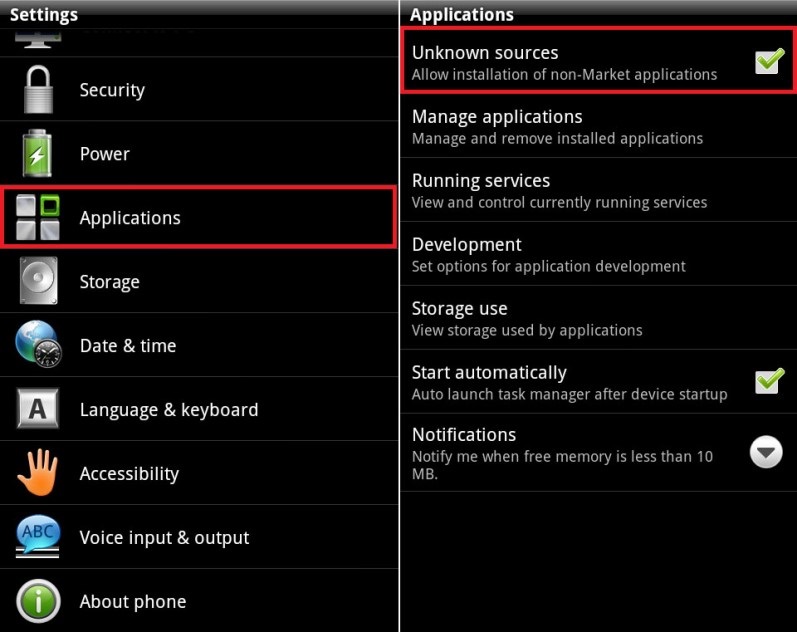
Go to your Android phone's Settings page, then navigate to "Security" or "Applications".
Once there, find the "Install from Unknown Sources" check box or switch and activate it.
After this is completed, go to your downloads folder and click on the app file (Amazon_App.apk) to install it.
Unknown sources install 

You'll need to activate the "Unknown Sources" option on your phone before before you can install the Amazon app

Step 3: Sign in and start getting free apps

Once you've got the app installed on your phone, you'll be able to dive in and start browsing the offerings.
At first glance it appears to be just like the Amazon shopping app. The trick is to click the three lines in the top left to bring up the menu, then click on "Apps & Games".
This will bring you to Amazon's own app store-within-an-app. The free offerings will all be clearly marked.